Lightweight screenshot tool with scheduled captures, hotkeys, hidden monitoring mode, and flexible saving options
Lightweight screenshot tool with scheduled captures, hotkeys, hidden monitoring mode, and flexible saving options
Vote (8 votes)
Program license Trial version
Developer SEASoftware
Version 2.11
Works under Windows
Vote
(8 votes)
Developer
SEASoftware
Works under
Windows
Program license
Trial version
Version
2.11
Pros
- Flexible scheduled or manual screenshot options
- Multiple output formats with adjustable quality
- Hidden mode for unobtrusive monitoring
- Supports multi-monitor setups
- Efficient file management and automatic cleanup
- Network folder compatibility
Cons
- No support for Windows versions beyond 8
- Lacks basic editing tools (e.g., annotations or cropping)
- Interface may appear dated on modern systems
Automated screenshot utility with flexible capture intervals and hidden mode.
Overview
ScreenMaster is a screenshot utility tailored for users who need automated and manual screen captures on Windows. Designed for a variety of tasks—ranging from documenting workflows to monitoring activity—it offers features that accommodate both ordinary and advanced demands.
Features and Functionality
Versatile Capture Options
ScreenMaster enables users to capture the full display, the active window, or a selected rectangular area. Screenshots can be triggered either manually using customizable hotkeys or set to occur automatically at intervals as short as one second or as long as one hour. This makes it useful for everything from compiling tutorials to conducting time-lapse screen recordings or surveillance.
Automated and Hidden Operation
A notable aspect of ScreenMaster is its capacity for hidden operation. It can run without appearing in the taskbar or system tray, making it suitable for discreet monitoring. Upon system reboot, ScreenMaster will relaunch and continue capturing if configured to do so.
File Management and Output
Screenshots can be saved in JPG, PNG, or BMP formats, with options to adjust image quality. The utility supports automatic and manual file naming (via sequential numbering or timestamps), archiving older screenshots in ZIP files, and daily subfolder creation for effective organization. For networked environments, screenshots may be saved to shared folders, and there’s a feature to set a maximum folder size, with automated cleanup of older files once storage thresholds are reached.
Multi-User and Multi-Monitor Support
ScreenMaster works with multi-monitor setups and supports both user-specific and global configuration profiles. This enables teams or administrators to apply consistent screenshot policies across multiple accounts on a single workstation.
Logging and Event Management
The program includes event logging for monitoring its own activity and ensuring audit trails. This adds reassurance for IT environments where oversight is necessary.
User Interface and Setup
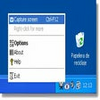
ScreenMaster’s interface is straightforward and easy to configure. The system tray menu provides quick access to key functions and preferences, while the main settings window is logically organized for users with varying levels of expertise.
Performance
The application runs efficiently in the background, consuming minimal system resources. Its hotkey and auto-capture features are responsive and reliable across all supported versions of Windows from XP to Windows 8. Network folder and zip archiving features function dependably in both local and remote storage scenarios.
Use Cases
ScreenMaster is especially well-suited for:
- Creating user manuals or documenting processes by capturing sequences of screenshots.
- Monitoring computer activity unobtrusively.
- Logging changes to websites or applications for reference.
Compatibility
ScreenMaster runs on Windows XP, Vista, 7, and 8. While it offers robust functionality on these platforms, users should verify system compatibility for newer operating systems, as official support beyond Windows 8 is not included.
Pros
- Flexible scheduled or manual screenshot options
- Multiple output formats with adjustable quality
- Hidden mode for unobtrusive monitoring
- Supports multi-monitor setups
- Efficient file management and automatic cleanup
- Network folder compatibility
Cons
- No support for Windows versions beyond 8
- Lacks basic editing tools (e.g., annotations or cropping)
- Interface may appear dated on modern systems